
I decided to build a new VMware host for my home “lab” last week to replace the HP workstation I had been using. (The real motive was to turn the HP workstation in to a large NAS since it has 12 SATA ports on it, but more on that later.) So off to part out my new server. What I ended up purchasing was the following (Prices as of 3/24/2015 in USD):
-
2 x ($169.99) Crucial 16GB (2 x 8GB) 240-Pin DDR3 SDRAM ECC�� =�$339.98
-
2 x ($159.99) Mushkin Enhanced ECO2 MKNSSDEC480GB 2.5″ 480GB�=�$319.98 { Used for a RAID1 datastore }
-
1 x ($259.99) SUPERMICRO MBD-X10SL7-F-O uATX Server Motherboard�=�$259.99
-
1 x ($256.99) Intel Xeon E3-1231V3 Haswell 3.4GHz 8MB L3 Cache L�=�$256.99
-
2 x ($89.99) Seagate Barracuda STBD2000101 2TB 7200 RPM�=�$179.98 { Used for a RAID1 datastore }
-
1 x ($139.99) Seasonic SS-660XP2 ATX 12V/EPS 12V, 660W, 80 PLUS�=�$139.99
-
1 x ($114.99) LIAN LI PC-V354B Black Aluminum MicroATX Mini Tower =�$114.99
-
1 x ($77.99) Kingston HyperX 3K SH103S3/120G 2.5″ 120GB SATA II�=�$77.99 { Used for a SWAP file datastore }
-
2 x ($6.99) Mushkin Enhanced MKNSSDBRKT2535 2.5″ to 3.5″ drive� =�$13.98
-
2 x ($34.95) Scythe SY1225SL12L 120mm “Slipstream” Case Fan�=�$69.90
-
1 x ($18.99) SanDisk Ultra Fit USB 3.0 Flash Drive�=�$18.99 { Used to boot vSphere }
The plan was to set this system up with VMware vSphere 6 and then migrate everything from my VMware 5.1 system to this. So I began building it as the parts arrived last friday night. Everything was going swimmingly until I forgot that the LSI2308 SAS/SATA RAID card doesn’t have any cache. What I found was that the 2 480GB SSD drives in a RAID 1 on that card were fast, extremely fast, as in I could boot a Windows 7 or Windows 2012R2 VM in about 3 seconds. However the 2 2TB SATA drives that I made a RAID 1 on there were slow as hell. (Same as the issue I was having with the HPXW8600 system.) I had originally thought it was just the RAID rebuilding, so I left it at the RAID bios over night rebuilding the array.
Well after leaving it at 51% completed and going to bed, waking up 8 hours later and it was only at 63%, I knew that I would never be able to use the SATA drives as a hardware mirror on that device. So I powered it down and disconnected them from the LSI2308 and moved them over to the Intel SATA side of the motherboard. This is where things get interesting, as I really wanted to have a large 2TB mirrored datastore for some of my test vm’s that I didn’t run 24×7 (the ones I do are on the SSD RAID 1.) In order to achieve this I had to do some virtualization of my storage…
The easiest way I could get the “mirrored” datastore to work was to do the following:
- Install FreeNAS vm on the SSD drive (pretty simple a small 8GB disk with 8GB of ram, which would leave me 24GB of ram for my other VM’s.)
- On each of the 2TB disks, create a VMware datastore, I called them nas-1 and nas-2, but it can be anything you want.
- Next create a VMDK that takes up nearly the full 2TB �(or smaller in my case, I created two 980GB VMDK’s per each 2TB disk.)
- Now present the VMDK’s to the FreeNAS VM.
- Next create a new RAID 1 volume in FreeNAS using the 2 disks (or 4 in my case) presented to it.
- Create a new iSCSI share of the new RAID 1 volume.
Now comes the part that gets a little funky. Because I didn’t want the iSCSI traffic to affect my physical 1GB on the motherboard I created a new vSwitch but didn’t assign any physical adapters to it. I then created a VMkernel Port on it and assigned the local vSphere host to it with a new IP in a different subnet. I then added another ethernet (e1000) card to the FreeNAS VM and placed it in that same vSwitch and assigned it an IP in the same subnet as the vSphere host.
With the networking “done”, it is now time to add the iSCSI software adapter:
- In the vSphere Client, click on the vSphere host, and then configuration
- Under Hardware, select Storage Adapter, then click Add in the upper right.
- The select the iSCSI adapter and hit ok. You should now have another adapter called iSCSI Software Adapter, in my case it was called vmhba38.
- Click on the new adapter and then click Properties
- Next I clicked on the Dynamic Discovery tab and clicked Add.
- In the iSCSI Server address I ended the IP address I made on the FreeNAS box on the second interface (the one on the “internal vSwitch”)
- Click ok (assuming you didn’t change the port from 3260)
- Now if you go back and click Rescan All at the top, you should see your iSCSI device.
- Now we just need to make a datastore out of it, so click on Storage under the Hardware box
- Then Add Storage…
- Then follow through adding the Disk/LUN and the naming stuff.
You should now have a new iSCSI datastore on the 2 disks that were not able to be “hardware” mirrored. Using HD Tune in a Windows 7 VM on that datastore I got this:
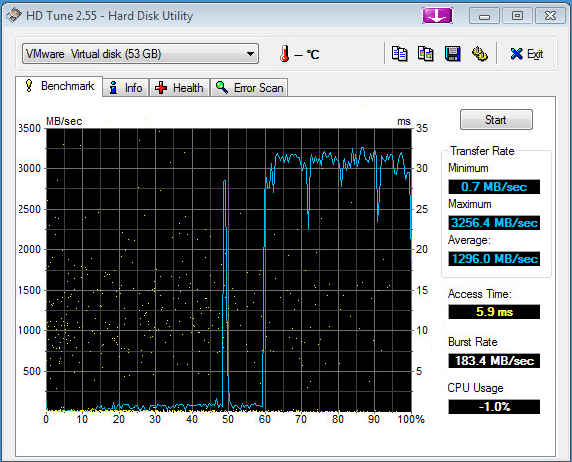
As you can see, the left side of the huge spike was actually the writing portion of the test, which got drowned out by the read side of the test. Needless to say the cache on the FreeNAS makes it read extremely fast. As an example a cold boot of this Windows 7 VM took about 45 seconds to get to the login screen from power on. However a reboot is about 15�seconds or less..
Now on the FreeNAS side here is what the CPU utilization looked like during the test:
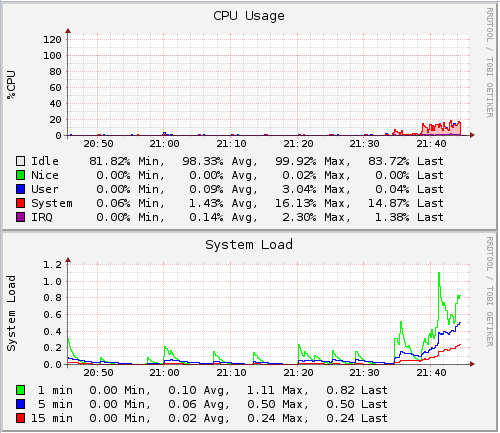
You can see that is barely touched the CPU’s while the test was running. So lets look at the disk’s to see how they dealt with it:
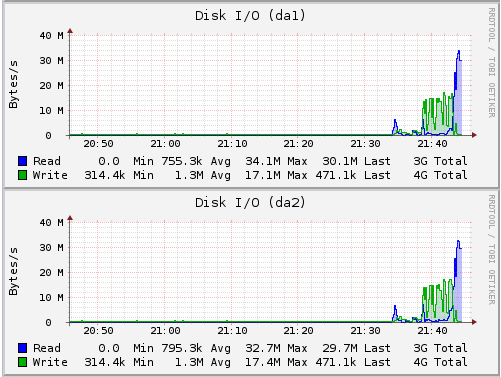
It looks like the writes were averaging around 17MB/s, which for a SATA/6Gbps drive is a little slow, but we are also doing a software raid, with cacheing being handled in memory on the FreeNAS side. The reads looked to be about double the writes, which is expected in a RAID 1 config.
The final graph I have from the FreeNAS is the internal network card:
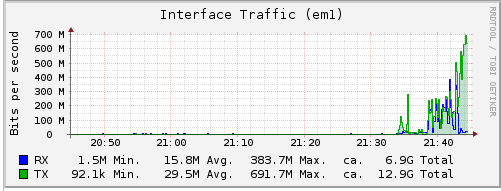
Here we can see the transfer rates appear to be pretty close to that of the disk side. This is however on the e1000 card. I have yet to try it with the VMXNET3 driver to see if I get any faster speeds or not.
While the above may not show very “high” transfer speeds, the real test was when I was transferring the VM’s from the HP box to the new one. Before I created the iSCSI datastore and was just using the straight LSI2308 RAID1 on the 2x 2TB disks, the write speed was so bad that it was going to take hours to move a simple 10GB VM. After making the switch, it was down to minutes. In fact the largest one I moved, was 123GB in size and took 138 minutes to copy using the ovftool method.
So why did I title this post Cash for Cache, quite simple, if I had more cash to spend on a RAID controller that actually had a lot of cache on it, and a BBU, I wouldn’t have had to go the virtualized FreeNAS route. I should also mention that I would NEVER recommend some one doing this in a production environment as their is a HUGE catch 22. If you only have one vSphere host and no shared storage, when you power off the vSphere side (and consequently the FreeNAS VM) you will lose the iSCSI datastore (which would be expected). The problem is when you power it back on, you have to go and rescan to find the iSCSI datastore(s) after �you boot the FreeNAS vm back up. Sure you could have the FreeNAS boot automatically, but I have not tested that yet and to see if vSphere will automatically scan the iSCSI again to find the FreeNAS share.
Looking to the future, if SSD’s drop in price to where they are about equal to current spindle disks, I will likely replace all the SATA hard drives with SSD drives and then this would be the fastest VMware server ever.